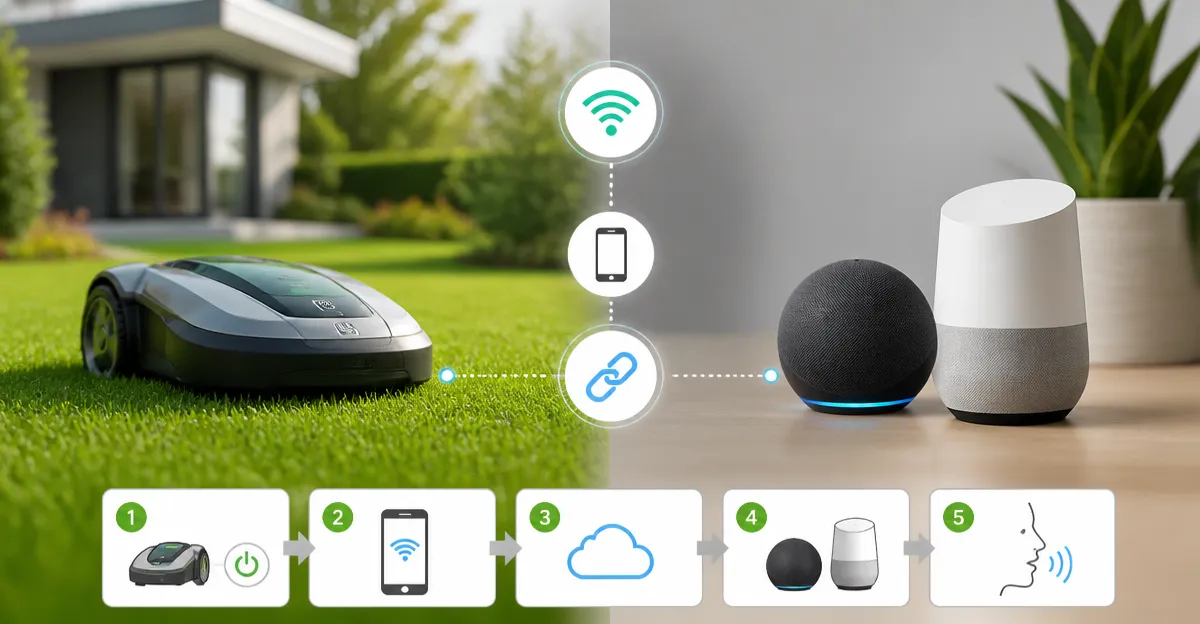
How to Connect Your Robot Lawn Mower to Alexa and Google Home: A Step‑by‑Step Voice Control Guide
Modern homeowners increasingly rely on smart assistants to streamline everyday chores. By integrating a robot lawn mower with Alexa or Google Home, one can start, pause, or schedule mowing using simple voice commands, freeing valuable time for other activities. This guide explains the entire process, from preparing the mower’s network connection to testing voice commands, while recommending reliable Amazon‑listed mowers that simplify each stage. Readers will finish with a fully voice‑controlled lawn care system that operates reliably in a variety of yard layouts.
What You’ll Need
- A compatible robot lawn mower with Wi‑Fi or Bluetooth connectivity (see product recommendations below).
- A stable home Wi‑Fi network operating on 2.4 GHz or 5 GHz.
- Smartphone or tablet with the mower’s manufacturer app installed.
- Amazon Alexa device (Echo, Echo Show, or compatible speaker) or Google Nest/Home speaker.
- Amazon or Google account credentials for linking services.
Step 1 – Verify Compatibility and Firmware
Before attempting any integration, ensure that the mower’s firmware is up‑to‑date and that the manufacturer explicitly supports Alexa or Google Home. Most newer models provide an app‑based “Smart Home” section where the skill or action can be enabled. Updating firmware reduces connectivity glitches and guarantees that security patches are applied. For example, the WORX Wire‑Free Robot Lawn Mower receives over‑the‑air updates through its Vision Cloud app, which includes support for both Alexa and Google Assistant.
Step 2 – Install the Manufacturer App and Create an Account
Download the official app from the App Store or Google Play. Open the app, register an account using a valid email address, and follow the on‑screen wizard to add the mower to your account. During this process, you will connect the mower to your home Wi‑Fi network; the app typically prompts you to scan a QR code on the mower or enter the Wi‑Fi password. The LEBOSBO V3 AI Vision Lawn Mower offers a streamlined one‑tap Wi‑Fi setup that automatically detects the network and confirms connectivity within minutes.
Step 3 – Enable the Alexa Skill or Google Action
Open the Alexa app, tap “Skills & Games,” and search for the mower’s brand (e.g., “WORX Landroid”). Select the skill, press “Enable to Use,” and sign in with the same account created in the manufacturer app. Google Home users should open the Google Home app, choose “Add,” then “Set up device,” and locate the mower’s action under the “Works with Google” list. Authentication links the two services, allowing voice commands to be routed to the mower’s cloud platform. The ECOVACS Goat O1000 RTK Lawn Mower includes a dedicated “ECOVACS Smart Home” integration that appears in both Alexa and Google Home catalogs.
Step 4 – Discover the Device in Your Smart Assistant
After enabling the skill or action, ask Alexa “Alexa, discover devices” or tell Google “Hey Google, set up new devices.” The assistant will scan the cloud for linked mowers and add them to your device list. You may need to assign a friendly name (e.g., “Front Yard Mower”) to avoid confusion if you own multiple units. Naming conventions are especially useful for the ECOVACS Goat O1000 LiDAR Pro, which supports up to eight custom zones that can be addressed individually via voice.
Step 5 – Create Voice Routines or Shortcuts
Both Alexa and Google Home allow you to build routines that combine multiple actions. For instance, you can create an Alexa routine named “Start Mowing” that first announces “Mowing will begin in five minutes” and then sends the start command to the mower. Google Home routines work similarly, enabling you to schedule mowing at sunrise with a single voice phrase. Utilizing routines maximizes convenience and reduces the need to remember exact command syntax. The ANTHBOT M9 Robot Lawn Mower offers an API endpoint that integrates seamlessly with custom Alexa routines for advanced users.
Step 6 – Test Basic Voice Commands
Once the device appears in your smart assistant, test core commands such as “Alexa, ask Front Yard Mower to start,” “Hey Google, stop the mower,” or “Alexa, set the mower to pause for 30 minutes.” Observe the mower’s response via its indicator lights or the manufacturer app’s status screen. If the mower does not respond, verify that it is within Wi‑Fi range and that the cloud service shows an active connection. The WORX Wire‑Free Robot Lawn Mower provides real‑time connectivity diagnostics in its app, making troubleshooting straightforward.
Step 7 – Optimize Network Placement and Power Management
Robotic mowers rely on a stable Wi‑Fi signal; placing the router centrally or using a mesh extender ensures uninterrupted communication. For larger properties, consider the RadioLink connectivity feature of the WORX Wire‑Free Robot Lawn Mower, which extends Bluetooth and Wi‑Fi reach across a quarter‑acre lawn. Additionally, enable the mower’s auto‑return function so it docks for charging before the battery depletes, preventing lost commands during a mowing cycle. The ANTHBOT M9 Robot Lawn Mower automatically resumes after charging, preserving any voice‑initiated schedule.
Tips & Pro Tips
- Label your mower’s Wi‑Fi SSID with a unique name to avoid accidental connection to neighboring networks.
- Use the manufacturer’s “zone” feature to create separate voice commands for front‑yard, back‑yard, or side‑yard mowing.
- Schedule mowing during low‑traffic Wi‑Fi periods (early morning or late evening) to reduce latency.
- Enable push notifications in the app so you receive alerts if the mower encounters an obstacle that stops voice control.
- For multi‑family homes, assign distinct voice profiles in Alexa or Google Home to prevent unauthorized mowing commands.
Troubleshooting
Problem: Voice command returns “I can’t find that device.”
Solution: Verify that the skill/action is still enabled, re‑authenticate the account, and run a manual device discovery again.
Problem: Mower does not start after a voice command.
Solution: Check the mower’s battery level in the app; if below 20 %, the device may refuse to start until it charges.
Problem: Intermittent connectivity on a large property.
Solution: Deploy a Wi‑Fi extender or use the mower’s built‑in RadioLink (available on the WORX Wire‑Free Robot Lawn Mower) to strengthen the signal.
Conclusion
Integrating a robot lawn mower with Alexa or Google Home transforms routine yard maintenance into a hands‑free experience. By following the seven steps—verifying compatibility, installing the app, enabling the skill, discovering the device, creating routines, testing commands, and optimizing network coverage—homeowners can enjoy reliable voice‑controlled mowing. The recommended mowers, such as the WORX Wire‑Free Robot Lawn Mower and the ANTHBOT M9 Robot Lawn Mower, provide robust app ecosystems that make smart‑home integration straightforward. Embrace this technology to reclaim weekend time and maintain a pristine lawn with a simple voice command.
Products Mentioned in This Guide
Frequently Asked Questions
What robot lawn mower features are required for Alexa or Google Home integration?
The mower must have built‑in Wi‑Fi or Bluetooth and support the manufacturer’s smart app that can be linked to Alexa or Google Home.
Can I use a 5 GHz Wi‑Fi network to connect my robot mower?
Yes, most modern mowers work on both 2.4 GHz and 5 GHz bands, but check the device specs to confirm dual‑band support.
How do I link my mower’s app to Amazon Alexa?
Open the Alexa app, go to Skills & Games, enable the mower’s skill, sign in with your mower account, and follow the prompts to discover devices.
What should I do if voice commands don’t control the mower?
Verify the mower is online, ensure the Alexa/Google Home skill is authorized, and re‑run the device discovery in the smart‑assistant app.
Can I schedule mowing times using voice only?
Yes, after linking, you can say “Alexa, set my mower to run at 9 AM daily” or the equivalent Google Home command to create schedules.